PrintNode Alternative: A Practical API Migration Guide
Evaluate PrintScaler as a PrintNode alternative with a practical migration checklist. Learn what to change, how to test PDF and RAW jobs, and how to avoid duplicate printing during cutover.
By the PrintScaler team · · 9 min read
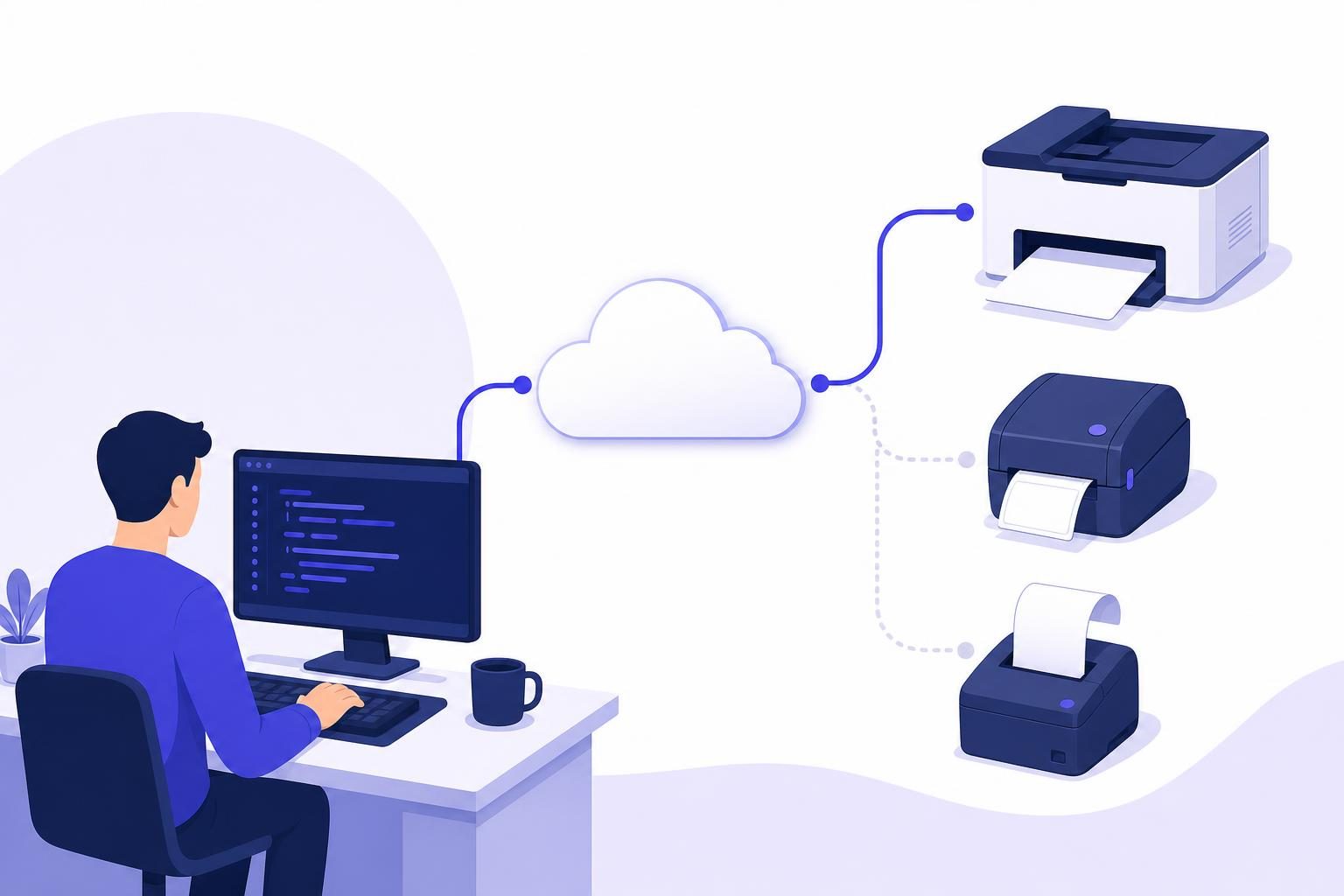
If you need a PrintNode alternative, evaluate more than whether an API can send a PDF to a printer. The replacement also needs to fit your printer fleet, preserve document formatting, handle disconnected computers, and make retries safe. PrintScaler provides a cloud printing API with PrintNode-compatible concepts, but you should treat a switch as a tested integration migration—not assume changing the API hostname is enough.
This guide explains what to compare, how to send your first PrintScaler job, and how to move production traffic without accidentally printing each order twice.
What should a PrintNode alternative actually replace?
PrintNode is a cloud printing service that connects applications to printers through a local client. If you already use it, your application probably relies on more than a print submission endpoint.
Start by identifying your actual dependencies:
- Document formats: PDFs, ZPL shipping labels, EPL labels, or ESC/POS receipt commands.
- Printer discovery: How your application finds printers and associates them with locations.
- Print settings: Copies, duplex, paper dimensions, trays, rotation, and scaling.
- Delivery behavior: What happens when a computer disconnects or a request times out.
- Operational visibility: How staff identify failed jobs and decide whether to reprint.
- Account structure: Whether you manage one business or printing for multiple customers.
A replacement can accept the same document type while behaving differently around identifiers, defaults, or job states. Those differences matter more than a superficially similar request body.
For example, an invoice that prints successfully on letter paper is not evidence that a thermal shipping label will retain its barcode dimensions. Test each meaningful document-and-printer combination separately.
Where PrintScaler fits
PrintScaler accepts PDF and RAW print jobs through a JSON REST API. A small background agent connects local printers to the service on Windows, macOS, Linux, or Raspberry Pi.
The agent establishes an outbound WebSocket connection, so the agent-based setup does not require inbound port forwarding. It starts automatically after reboots, updates itself, and reports printers and their status.
| Requirement | PrintScaler capability | What to validate before switching |
|---|---|---|
| PDF documents | Print PDF content by URL or Base64 | Fonts, margins, page size, and printer defaults |
| Thermal labels | Send RAW ZPL or EPL | The printer understands the language you send |
| Receipt printing | Send RAW ESC/POS | Paper width, character encoding, cutting, and drawer commands |
| Local printer access | Agent for Windows, macOS, Linux, and Raspberry Pi | Your target computer can print locally first |
| Offline handling | Jobs queue while the computer is offline, with configurable expiry | Delayed output is still useful for that document type |
| Retry protection | X-Idempotency-Key support |
Your application generates and persists stable keys |
| Monitoring | Job history and signed, retried webhooks | Your application interprets states correctly |
| Print settings | PDF options and readable printer capabilities | Required options exist on the selected printer |
This is a capability checklist, not a claim that every existing PrintNode integration will work unchanged. Review the PrintScaler API documentation against the calls your application actually makes.
Is PrintScaler a drop-in PrintNode replacement?
PrintScaler uses PrintNode-compatible concepts, including accounts, computers, printers, print jobs, options, ID sets, and pagination. That gives developers a familiar model, but it does not establish complete endpoint, SDK, or behavior compatibility.
Before changing production code, check these boundaries explicitly:
- Authentication: PrintScaler supports an API key as the HTTP Basic username or a Bearer token.
- Request fields: Confirm every field your application sends is supported and has the intended meaning.
- Response handling: Review any assumptions about response bodies, errors, pagination, and identifiers.
- Printer mapping: Treat printer IDs from the new service as separate identifiers. Do not copy old IDs into new requests.
- Lifecycle handling: Map your application’s status model to PrintScaler’s job states.
- Optional features: Verify capabilities your integration depends on rather than inferring them from similar terminology.
If you use a third-party library, inspect how it builds requests. A library that hardcodes a hostname or expects a particular response structure may need an adapter or replacement.
For AI-assisted implementation, provide your coding assistant with the complete Markdown API reference. Ask it to compare your existing integration against the documented API, not to guess compatibility.
How to test PrintScaler as a PrintNode alternative
Use one nonproduction workstation and one representative printer first. Keep your existing printing path unchanged until the new path passes physical output tests.
1. Establish a local printing baseline
Print a test document directly from the operating system. Confirm the correct printer driver, paper size, and tray are selected.
For a RAW workflow, also confirm that the printer understands your command language. Sending ZPL to a printer that only accepts another language will not become valid simply because it travels through a different cloud service.
Record a small reference set:
- A multipage invoice with realistic fonts and margins.
- A shipping label with a barcode that you can scan.
- A receipt with the actual paper width and required cut behavior.
Only include document types your application uses.
2. Install and pair the agent
Download the PrintScaler agent for the test computer. Install it and enter the dashboard pairing code to link the computer.
In the dashboard, locate the detected printer and use the test page button. Then record its PrintScaler printer ID in your test configuration.
Prefer an application-level mapping such as warehouse-east-packing to a provider-specific numeric ID. Your business logic should select a workstation role, while configuration resolves that role to the current printer.
3. Submit a PDF through the API
Set your API key, target printer ID, and a PDF URL that the service can retrieve:
export PRINTSCALER_API_KEY='psk_replace_me'
export PRINTSCALER_PRINTER_ID='123'
export PRINTSCALER_PDF_URL='https://files.example.com/test-invoice.pdf'
Then send a single request:
curl --fail-with-body \
  --request POST \
  'https://api.printscaler.com/v1/printjobs' \
  --header "Authorization: Bearer ${PRINTSCALER_API_KEY}" \
  --header 'Content-Type: application/json' \
  --header 'X-Idempotency-Key: migration-invoice-test-001' \
  --data "{
    \"printerId\": ${PRINTSCALER_PRINTER_ID},
    \"contentType\": \"pdf_uri\",
    \"content\": \"${PRINTSCALER_PDF_URL}\",
    \"title\": \"Migration invoice test\"
  }"
Replace the example URL with a real PDF. A URL that only works in an employee’s authenticated browser is not necessarily retrievable by the printing service.
PrintScaler also accepts pdf_base64, raw_uri, and raw_base64. Base64 is useful when your application already holds the document bytes and you do not want to expose a document URL. It increases the request payload size; it is not encryption.
Keep the API key on your backend rather than in browser JavaScript or a mobile application bundle.
4. Test a RAW job if your workflow uses one
Here is a small Python example that sends ZPL through the same endpoint. Run it only against a printer that understands ZPL.
import base64
import json
import os
from urllib.request import Request, urlopen

zpl = b"^XA^FO40,40^A0N,35,35^FDMigration test^FS^XZ"

payload = {
    "printerId": int(os.environ["PRINTSCALER_PRINTER_ID"]),
    "contentType": "raw_base64",
    "content": base64.b64encode(zpl).decode("ascii"),
    "title": "ZPL migration test",
}

request = Request(
    "https://api.printscaler.com/v1/printjobs",
    data=json.dumps(payload).encode("utf-8"),
    headers={
        "Authorization": "Bearer " + os.environ["PRINTSCALER_API_KEY"],
        "Content-Type": "application/json",
        "X-Idempotency-Key": "migration-zpl-test-001",
    },
    method="POST",
)

with urlopen(request, timeout=30) as response:
    print(response.status)
    print(response.read().decode("utf-8"))
This sample intentionally omits automatic retries. Add retries only after you have defined persistent idempotency keys and error handling.
For a deeper label-specific walkthrough, see the guide to printing ZPL from cloud applications. If your migration involves kitchen or retail receipts, the Node.js ESC/POS printing guide covers that document format instead.
5. Compare physical output, not just API responses
Inspect the printed documents against your baseline. Check barcode scanning, clipped edges, orientation, receipt width, page order, and duplex behavior.
For PDFs, read the printer’s available capabilities before configuring paper, tray, or DPI selections. Matching option names in application code does not guarantee identical output across printer drivers.
Also distinguish scaling from document design: fitting a PDF to a page can prevent clipping, but it can change label dimensions. A correctly sized source document is usually a better starting point.
Prevent duplicate printing during migration
The most dangerous migration failure is often not a missing page. It is two valid copies of a shipping label, kitchen ticket, or production instruction entering the workflow.
Use one active delivery path per logical job
Do not send the same live document to both providers as a production “comparison.” Instead, use saved test documents, a separate test printer, or a dry-run path that records the proposed request without submitting it.
At cutover, route each logical job to exactly one provider. Persist that decision before submission so a worker restart does not choose a different route.
Persist an idempotency key before the first attempt
An idempotency key should identify one intended print action, not one HTTP attempt. For example:
order-74291-packing-slip-original
Reuse that key when retrying the same submission after a timeout. Generate a different key for an intentional reprint and record why the reprint was requested.
PrintScaler’s idempotency protection applies to requests sent to PrintScaler. It cannot prevent a separate system from printing the same document through your previous provider.
Treat timeouts as uncertain outcomes
If your application times out while submitting a request, the job may already have been accepted. Do not immediately submit a new job with a new key.
Retain the original key, inspect available job information, and retry according to your application’s policy. Also respect PrintScaler’s rate limit of 10 requests per second, with a burst of 30. Use a queue to smooth larger order batches rather than submitting every job simultaneously.
Test offline behavior and job states
A successful HTTP request is not the same as a confirmed physical sheet in someone’s hand.
PrintScaler job states include new, sent_to_client, queued, in_progress, done, error, cancelled, and expired. Build your application around these states rather than reducing everything to “request succeeded” or “request failed.”
Use signed webhooks to receive job and connectivity events. Verify HMAC-SHA256 signatures, and make your handler safe to process repeated deliveries because webhooks are retried.
Test at least these scenarios:
| Scenario | What your migration test should establish |
|---|---|
| Computer is offline before submission | The job queues and your application shows a pending outcome |
| Computer reconnects | Queued work resumes without your application creating another job |
| Job expires | Staff see that printing did not complete and can choose a controlled reprint |
| Application times out | A retry with the original key does not create duplicate output |
| Webhook is delivered again | Your handler does not trigger another print action |
| Agent computer reboots | The agent starts again and reports its connection |
Choose expiry settings according to the document’s usefulness. A delayed invoice may still be valuable; a kitchen ticket printed long after service may be actively confusing.
Finally, understand what reported completion means for your workflow. Do not assume a done state proves a label was attached to the correct parcel or that a person collected a receipt. Those are business-process checks beyond API delivery status.
Compare pricing using requests and computers
PrintScaler pricing is per print request, not per page. A multipage PDF submitted as one job is one request; separate submissions are separate requests.
The current plans are:
| Plan | Monthly price | Included prints/month | Computers | Listed additional-print rate |
|---|---|---|---|---|
| Free | Free | 100 | 1 | — |
| Starter | $9 | 5,000 | 3 | $1.50 per 1,000 |
| Business | $29 | 30,000 | 10 | $1.00 per 1,000 |
| Scale | $89 | 900,000 | Unlimited | $0.40 per 1,000 |
Check the current pricing before budgeting. Count connected computers separately from printers: the Free plan includes all printers on one computer.
For a useful comparison with your existing setup, measure monthly logical print requests, intentional reprints, workstation count, and support requirements. Starter includes 90-day print job history and email support; Business adds multiple API keys and webhooks with priority support. Do not treat a planned feature as available: integrator sub-accounts are listed as coming soon on Scale.
A low-risk production cutover checklist
Before moving all traffic, complete one full workflow at a limited site or workstation:
- Store old and new printer mappings separately.
- Validate representative PDFs and RAW documents on real hardware.
- Keep credentials in backend configuration or a secret store.
- Persist provider selection, idempotency key, and submission outcome.
- Test disconnects, expiry, retries, and webhook redelivery.
- Confirm staff know how to distinguish pending jobs from failed jobs.
- Define an intentional reprint action with an audit trail.
- Keep a routing switch for rollback, without automatically resubmitting uncertain jobs.
Expand only after the limited rollout works through normal operational interruptions, not merely a successful test page.
Choose a replacement based on the workflow
PrintScaler is a practical PrintNode alternative when you need PDF and RAW printing through an API, local printer connectivity, offline queues, and observable job delivery. The safest migration preserves your application’s business rules while explicitly testing identifiers, formatting, retries, and failure states.
Create a free PrintScaler account, connect one test computer, and validate one representative workflow before changing production routing.
Frequently asked questions
Is PrintScaler a drop-in replacement for PrintNode?
PrintScaler uses PrintNode-compatible concepts, but that does not guarantee complete endpoint, SDK, or behavioral compatibility. Review authentication, request fields, response handling, printer IDs, and job states before switching.
Can I print PDFs and thermal labels with the same API?
Yes. PrintScaler accepts PDF and RAW content through its print jobs endpoint, using either URLs or Base64 content. RAW ZPL, EPL, or ESC/POS commands must match the language supported by the target printer.
Do I need to open firewall ports for PrintScaler?
The PrintScaler agent uses an outbound WebSocket connection and does not require inbound open ports. This is different from directly reaching a network receipt printer through a public IP and port forwarding.
How do I avoid duplicate jobs when switching printing services?
Assign each logical print action to one provider and persist that routing decision. For PrintScaler retries, reuse the original X-Idempotency-Key; cross-provider duplicates still require prevention in your application.
What happens if the printer computer is offline?
Jobs queue while the computer is offline and print when it reconnects, provided they have not expired. Set an appropriate expiry policy so outdated documents do not unexpectedly enter your workflow.
Does PrintScaler charge per printed page?
PrintScaler pricing is per print request, not per page. Estimate costs using your submitted jobs and connected computers, then check the current pricing page for plan allowances and additional-print rates.