Laravel Printing: Send Invoices to Local Printers by API
Send invoices and packing slips from Laravel to a physical printer without opening a browser print dialog. Build a queued workflow with secure credentials, retry protection, and clear job tracking.
By the PrintScaler team · · 10 min read
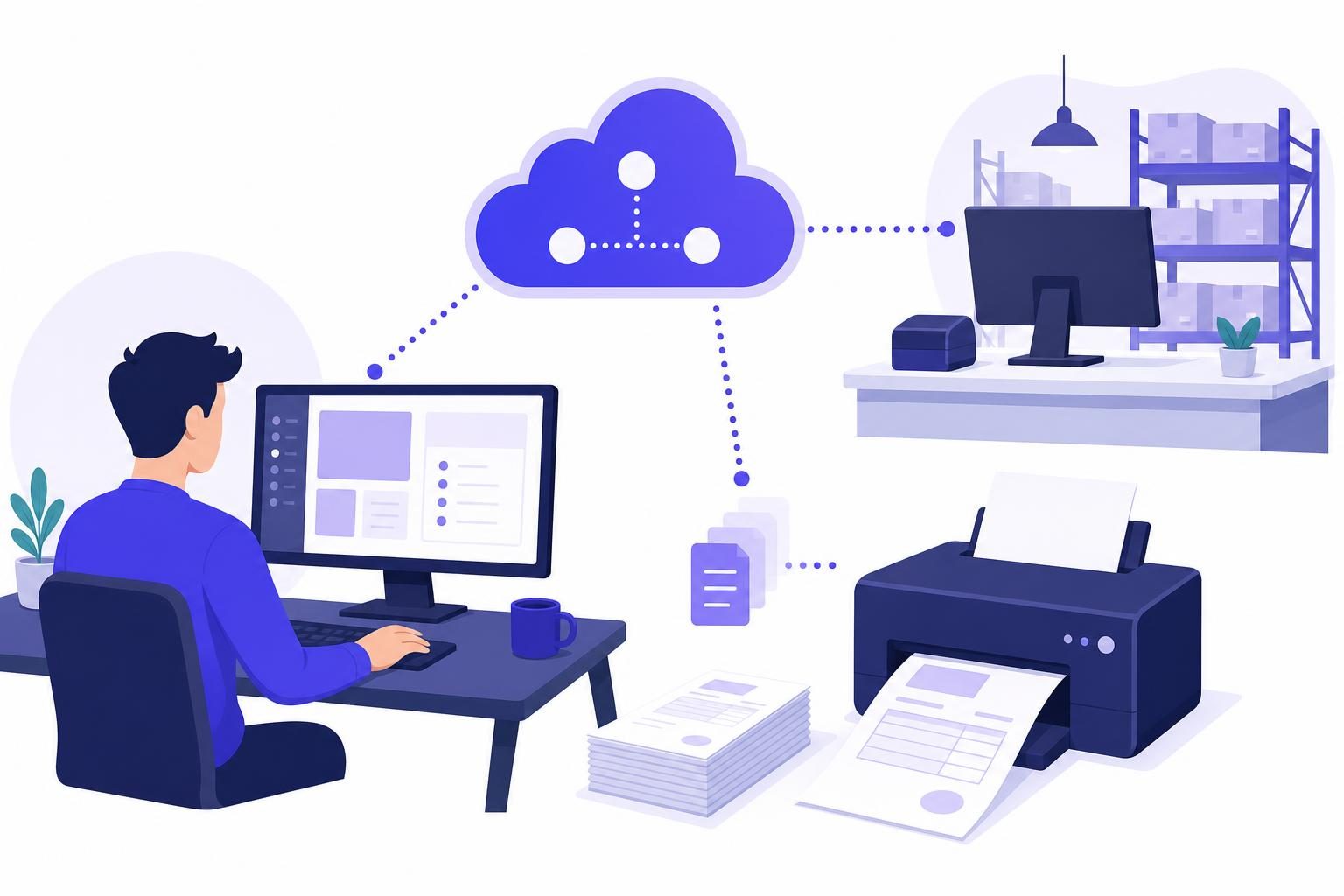
You can print from Laravel to a local printer by sending an HTTPS request to a cloud printing API, with an agent connecting the destination computer and its printers. Your Laravel application can stay on a VPS, managed host, or cloud platform; it does not need direct network access to the printer. This guide builds a queued invoice-printing workflow with PrintScaler, including secure configuration, retry-safe requests, and practical failure handling.
Why Laravel cannot simply print to a warehouse printer
A Laravel application running on a remote server cannot normally see the USB printer attached to a warehouse computer. Even network printers usually have private addresses that are unreachable from your hosting environment.
Generating a PDF solves a different problem: document creation. Returning that PDF to a browser still requires someone to open it and use a print dialog.
For unattended invoice or packing-slip printing, separate the workflow into three parts:
- Document generation: Laravel creates or locates the PDF.
- Job submission: Laravel requests printing through an API.
- Local delivery: A connected device receives the job and sends it to the physical printer.
With PrintScaler, the agent supplies that local connection. It runs on Windows, macOS, Linux, or Raspberry Pi and connects outbound through a WebSocket. You do not need inbound firewall rules or a publicly exposed printer port for this setup.
The same architecture works when your application serves several warehouses: your application chooses the appropriate printer ID for each order.
Choose the right Laravel printing approach
Before implementing anything, decide whether you actually need automatic physical output.
| Requirement | Suitable approach | Main consideration |
|---|---|---|
| A customer downloads an invoice | Generate and return a PDF | No printer integration is necessary |
| An employee occasionally prints a document | Open a PDF and use the browser print dialog | The user chooses the destination and settings |
| A warehouse prints packing slips automatically | Queue an API request to a connected printer | Requires routing, retry handling, and job monitoring |
| A POS prints receipt commands | Send supported ESC/POS data as RAW content | The printer must understand the command language |
| An application prints across multiple locations | Map application locations to printer IDs | Keep routing decisions on the server |
This tutorial uses PDF invoices. PrintScaler also accepts RAW content, including ZPL/EPL for compatible label printers and ESC/POS for receipt printers, but those document formats require different generation logic.
If your starting point is a web interface rather than a backend event, the related guide to silent printing from a browser explains the browser-to-backend boundary.
Step 1: Connect the destination printer
Install the PrintScaler agent on the computer that can already use the printer.
Then:
- Confirm the printer works from the computer’s operating system.
- Install and start the agent.
- Enter the pairing code in the PrintScaler dashboard to link the computer.
- Find the discovered printer in the dashboard.
- Use its test-page button.
- Record the printer ID for your Laravel configuration.
The local test matters. An API cannot fix an incorrect printer driver, a disconnected USB cable, or paper loaded in the wrong tray.
The agent starts automatically after reboots and updates itself. Nevertheless, decide who is responsible for keeping the warehouse computer powered on and the printer supplied with paper.
For the first implementation, use one printer and a harmless one-page test PDF. Add location-based routing only after that path works reliably.
Step 2: Configure Laravel without exposing the API key
Use Laravel’s server-side HTTP client. Do not send the PrintScaler API key to browser JavaScript or include it in rendered pages.
Add these values to your deployment environment:
PRINTSCALER_API_KEY=psk_replace_with_your_key
PRINTSCALER_PRINTER_ID=123
Add a configuration entry in config/services.php:
'printscaler' => [
    'key' => env('PRINTSCALER_API_KEY'),
    'printer_id' => (int) env('PRINTSCALER_PRINTER_ID'),
],
Read these values through config() in application code. This is important when Laravel configuration caching is enabled: application code should not depend on calling env() outside configuration files.
Treat the printer ID as server-controlled routing information. If a user requests an invoice print, authorize access to that invoice and determine its warehouse printer in your backend. Do not let a submitted form freely choose any printer in your account.
For multiple locations, store the printer mapping in your application database rather than creating a separate environment variable for every device.
Step 3: Choose PDF URL or base64 delivery
PrintScaler accepts PDF content in two forms:
| Content type | What Laravel sends | When to use it |
|---|---|---|
pdf_uri |
A URL pointing to a PDF | The document is available through a suitable downloadable URL |
pdf_base64 |
The PDF bytes encoded as base64 | Laravel can read the PDF but should not expose a download URL |
For pdf_uri, the URL must return the PDF without requiring an interactive login. A route that redirects unauthenticated visitors to your Laravel login page is not a usable PDF source.
A temporary signed storage URL can be appropriate, but its lifetime must accommodate your workflow. Do not assume that an expiring URL remains usable through every combination of queue delays, offline devices, and retries. Test those conditions before production.
For private invoices already stored on Laravel’s local disk, base64 is often a straightforward starting point:
use Illuminate\Support\Facades\Storage;

$pdfBase64 = base64_encode(
    Storage::disk('local')->get('invoices/1042.pdf')
);
Base64 increases the request body size, so avoid unnecessarily large documents. For the queued example below, pass the storage path to the worker and read the PDF there rather than serializing the entire PDF into your queue payload.
Generate the invoice before dispatching its print job. A print worker should not race against another process that is still writing the document.
Step 4: Create a queued Laravel print job
Printing should usually run outside the web request. That keeps an API timeout from making an employee wait on an order screen.
Generate a job class:
php artisan make:job PrintInvoice
The following example assumes a current Laravel application with the standard HTTP client and queue facilities. It reads an existing PDF from local storage and submits it using the documented print jobs API.
<?php

namespace App\Jobs;

use Illuminate\Contracts\Queue\ShouldQueue;
use Illuminate\Foundation\Queue\Queueable;
use Illuminate\Support\Facades\Http;
use Illuminate\Support\Facades\Log;
use Illuminate\Support\Facades\Storage;

class PrintInvoice implements ShouldQueue
{
    use Queueable;

    public int $tries = 5;
    public int $timeout = 45;

    public function __construct(
        public string $pdfPath,
        public int $printerId,
        public string $submissionKey,
        public string $documentTitle,
    ) {}

    public function backoff(): array
    {
        return [10, 30, 120, 300];
    }

    public function handle(): void
    {
        $pdf = Storage::disk('local')->get($this->pdfPath);

        $response = Http::withToken(
            config('services.printscaler.key')
        )
            ->acceptJson()
            ->withHeaders([
                'X-Idempotency-Key' => $this->submissionKey,
            ])
            ->connectTimeout(5)
            ->timeout(30)
            ->post('https://api.printscaler.com/v1/printjobs', [
                'printerId' => $this->printerId,
                'contentType' => 'pdf_base64',
                'content' => base64_encode($pdf),
                'title' => $this->documentTitle,
            ]);

        $response->throw();

        Log::info('Invoice print request accepted', [
            'submission_key' => $this->submissionKey,
            'http_status' => $response->status(),
        ]);
    }
}
The request uses Bearer authentication and the actual PrintScaler endpoint. Authentication can alternatively use the API key as the HTTP Basic username.
This deliberately small example throws on unsuccessful HTTP responses so Laravel can retry the job. In production, classify errors: a temporary network failure may deserve a retry, while invalid credentials or an invalid printer configuration need intervention rather than repeated submissions.
Also note what the log says: request accepted, not invoice physically printed. Those are different milestones.
Step 5: Give every intended print a stable identity
A timeout creates ambiguity. PrintScaler might have accepted the request even though your Laravel worker never received the response.
Without retry protection, submitting the same invoice again could produce a second copy. Send the same X-Idempotency-Key whenever retrying the same intended print operation.
For example, derive a key from a durable application print-request record:
use App\Jobs\PrintInvoice;

// $printRequest is an application-owned, persisted record.
// Its UUID is created once for this intended print operation.

PrintInvoice::dispatch(
    pdfPath: $printRequest->pdf_path,
    printerId: $printRequest->printer_id,
    submissionKey: $printRequest->uuid,
    documentTitle: 'Invoice ' . $printRequest->invoice_number,
)->afterCommit();
The printRequest model is your application data, not a PrintScaler resource or a Laravel built-in. Useful fields include its UUID, invoice ID, document revision, PDF path, printer ID, submission status, and creation time.
Create that record when your business event requests printing. Persisting it before dispatch gives you a durable reference for retries and troubleshooting. Dispatch after the surrounding database transaction commits so a worker does not start before the underlying records exist.
Apply these rules:
- Worker retry: reuse the existing print-request UUID.
- Duplicate delivery of the same business event: find the existing print-request record rather than creating another.
- Intentional operator reprint: create a new record with a new UUID.
- Changed invoice document: represent it as a separate intended operation with an appropriate document revision.
Use a database uniqueness rule or equivalent transactional control for business events that must produce only one intended print. API idempotency protects repeated submissions with the same key; it cannot recognize that two unrelated UUIDs represent an accidental duplicate in your application.
See the idempotency documentation before finalizing your retry behavior. Do not assume that idempotency supplies unlimited historical deduplication beyond the documented behavior.
Step 6: Run and supervise the queue worker
Use a real asynchronous queue connection in production, such as Laravel’s database or Redis queue driver. The sync connection executes the job immediately and does not move printing out of the request lifecycle.
For a basic worker:
php artisan queue:work --tries=5 --timeout=45
Run it under your hosting platform’s process supervisor. Ensure the queue connection’s retry interval exceeds the worker timeout so a second worker does not pick up a job while the first is still processing it.
The HTTP timeout in the example is shorter than the worker timeout. That gives the application time to handle the HTTP failure before the worker itself is terminated.
Keep throughput under control as you add workers. PrintScaler’s rate limit is 10 requests per second with a burst of 30. Ten independently running workers can exceed that during a busy dispatch cycle, so apply shared queue throttling rather than relying only on each job’s backoff.
Before rollout, test a stopped worker, a temporary network failure, and a failed job that an operator retries manually.
Track submission separately from printer progress
Laravel queue status tells you whether your application executed a task. It does not tell you whether a printer completed the corresponding job.
PrintScaler reports these print-job states:
newsent_to_clientqueuedin_progressdoneerrorcancelledexpired
Store the returned PrintScaler job identifier using the response structure in the API reference. Associate it with your application print-request record, rather than guessing that your Laravel queue job ID identifies the remote print job.
PrintScaler provides printjob.state webhooks, along with computer and printer events. For webhook handling, verify the HMAC-SHA256 signature according to the documentation, enqueue any substantial processing, and make handlers safe for repeated delivery because webhooks are retried.
Jobs can wait while a connected computer is offline and print when it returns, subject to a configurable expiry. Choose that expiry around the document’s usefulness: yesterday’s kitchen ticket and a still-needed invoice have very different operational consequences.
Do not automatically submit a new print just because completion is taking longer than expected. First inspect the existing job and its history.
Common Laravel printing problems and fixes
The API request succeeds, but nothing appears
Check the dashboard’s job history, computer connection, selected printer, and reported printer status. Then test the printer locally. Avoid creating additional jobs until you understand what happened to the first one.
The worker cannot read the PDF
A local storage path on the web server might not exist on a separate worker machine. Use storage accessible to the worker, or use an appropriate PDF URL workflow. Keep the referenced document available until submission and retry processing are complete.
Two copies appear after an order update
Look for duplicate event listeners, repeated webhook deliveries to your application, or newly generated idempotency keys on every attempt. Keep one durable print-request record per intended business operation.
The invoice prints on the wrong paper
Inspect printer capabilities rather than assuming every device has the same trays or paper names. PrintScaler supports PDF options including paper size, tray, copies, duplex, DPI, color, and fit to page. Use the documented option structure and values supported by the selected printer.
A deployment stops automatic printing
Check worker supervision, cached configuration, storage access, and failed jobs. Restart long-running Laravel queue workers as part of your deployment process so they load updated code and configuration.
Budget by print request, not invoice page count
PrintScaler pricing is per print request, not per page. A multipage invoice submitted in one request is therefore different from submitting each page as its own job.
The Free plan includes 100 prints per month and one computer, which is useful for testing this workflow. Starter is $9 per month with 5,000 included prints and three computers. Check the current plans and usage pricing when estimating production volume.
Count intentional reprints and separately submitted packing slips in that estimate. Also consider how many computers need agents, not just how many printers your application addresses.
Put the workflow into production gradually
Reliable Laravel printing comes from a few clear boundaries: generate a stable document, authorize its destination, queue the API request, reuse its idempotency key for retries, and track the remote job separately from Laravel’s worker.
Start with one invoice and one printer. Then test outages, deliberate reprints, and duplicate business events before enabling automatic output for every order. Create a free PrintScaler account to connect your first printer and test the complete Laravel-to-paper workflow.
Frequently asked questions
Can Laravel print directly to a local USB printer?
A hosted Laravel application normally cannot access a USB printer attached to another computer. A local agent can bridge that connection, allowing Laravel to submit an HTTPS print request while the agent delivers it to the printer.
Do I need a special Laravel package to use PrintScaler?
No. Laravel's built-in HTTP client can send authenticated JSON requests to the PrintScaler API. You can use Laravel queues to run those requests asynchronously.
Can I print a Laravel invoice without opening a browser dialog?
Yes. Generate the invoice PDF on your backend and submit it to a connected printer through the API. This is a server-driven workflow rather than an attempt to bypass the browser's print-dialog restrictions.
How do I prevent duplicate printing when a Laravel job retries?
Persist an identifier for each intended print operation and send it as the X-Idempotency-Key on every retry. Also deduplicate the business event in your database so repeated events do not create separate print requests with different keys.
Should Laravel send a PDF URL or base64 content?
Use pdf_uri when the PDF is available at a suitable downloadable URL. Use pdf_base64 when the worker can read the PDF bytes and you prefer not to expose a document URL. Test URL expiry and storage access against your queue and retry behavior.
What happens if the printer computer is offline?
PrintScaler jobs can queue while the computer is offline and print when it reconnects, subject to configurable expiry. Monitor the existing job rather than creating a replacement solely because printing is delayed.