Node.js ESC/POS Printing: Send Receipts to Local Printers
Send ESC/POS receipts from a Node.js backend to a local or remote thermal printer. Build a working RAW-printing request, format receipt bytes, and handle retries without duplicate jobs.
By the PrintScaler team · · 10 min read
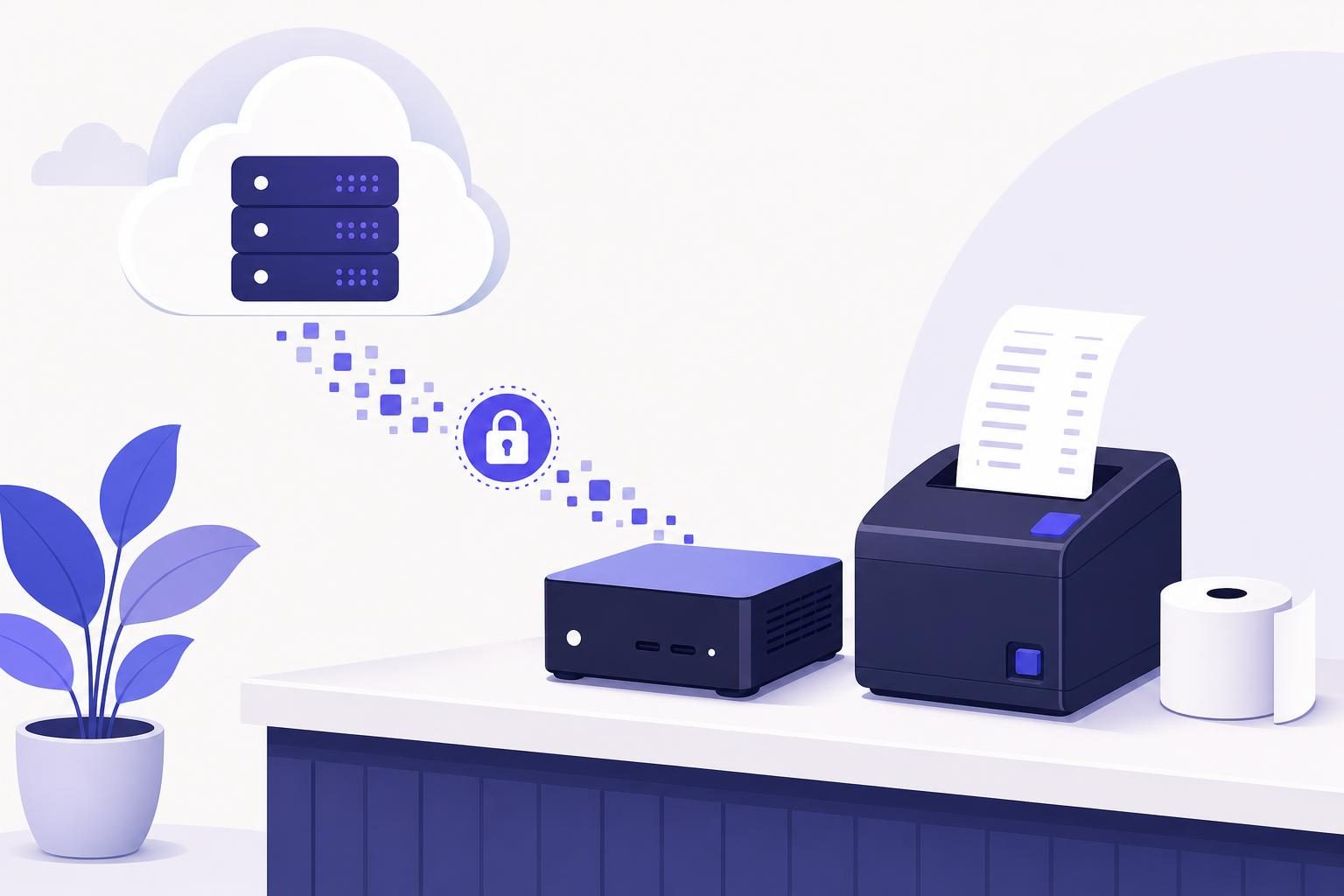
You can print ESC/POS receipts from Node.js by generating the receipt as bytes and sending those bytes to a service that can reach the physical printer. With PrintScaler, your backend submits a RAW print job over HTTPS, while an agent at the store handles the local printer connection. This works even when your Node.js application runs in the cloud and the receipt printer sits behind the store’s firewall.
This tutorial builds a complete receipt-printing script, explains the commands it sends, and shows how to handle retries without accidentally creating a second print job.
How Node.js ESC/POS printing works
ESC/POS is a printer command language used by many thermal receipt printers. A receipt can contain printable text alongside control bytes for alignment, emphasis, paper feeding, cutting, and other supported functions.
Instead of creating a PDF and asking a driver to render it, your application sends the printer commands directly. For compatible receipt printers, RAW ESC/POS printing is faster and produces sharper text than rendering the receipt as a PDF.
The architecture in this guide is:
Node.js backend
    |
    | HTTPS: RAW receipt encoded as base64
    v
PrintScaler
    |
    | Outbound connection established by the agent
    v
Store computer running the PrintScaler agent
    |
    v
ESC/POS-compatible receipt printer
Your server does not need a USB connection to the printer or an inbound connection to the store. The agent uses an outbound WebSocket connection, so you do not need to expose printer ports to the internet.
When this approach fits
Use this pattern when you need to:
- Print a receipt after a payment or order event.
- Send kitchen tickets to a restaurant location.
- Add receipt printing to a cloud-hosted POS or ERP.
- Route receipts to different stores from one backend.
- Run a kiosk application without making the browser responsible for printing.
If your only requirement is printing a document already rendered in the browser, the guide to silent browser printing explains that separate workflow. Here, the backend constructs the receipt itself.
Choose RAW ESC/POS or PDF before writing code
Both formats can produce receipts, but they solve different problems.
| Requirement | RAW ESC/POS | |
|---|---|---|
| Compact text receipts | A natural fit for compatible printers | Possible, but requires correct page sizing |
| Cut-paper command | Sent as a supported printer command | Not part of the PDF document itself |
| Layout control | Character columns and printer commands | Page dimensions, fonts, and graphics |
| Hardware portability | Requires compatible commands | Depends on driver and media support |
| Existing invoice document | Requires rebuilding the layout | Usually the simpler option |
For a text-first sales receipt on a compatible 58 mm or 80 mm thermal printer, start with ESC/POS. For an existing invoice with complex typography, a PDF may be more practical.
Compatibility still matters. “ESC/POS-compatible” does not mean every model implements every command identically. Check the manufacturer’s programming reference before adding a cutter, cash drawer, QR code, or non-Latin text.
The example below uses basic commands and ASCII text to keep the first test predictable.
Step 1: Connect the receipt printer to PrintScaler
Start at the location where the receipt should print.
- Install the printer according to its manufacturer’s instructions.
- Confirm that the operating system can see the printer.
- Install the PrintScaler agent on the connected Windows, macOS, or Linux computer.
- Enter the dashboard pairing code in the agent to link that computer.
- Find the reported printer in the dashboard and note its printer ID.
- Use the dashboard’s test-page control to check the basic connection.
The agent starts automatically after reboots and reports printers and their status. A successful test page verifies the connection, but it does not prove that the printer understands ESC/POS. You will test the RAW command path separately.
For supported Epson Server Direct Print models, a computer is not required. If that is your intended hardware setup, see the guide to printing receipts from an iPad to Epson printers without a PC. The rest of this tutorial uses the agent-based setup.
Check the printer’s operating mode
Some printers support more than one command language or emulation mode. Make sure the selected mode accepts the commands you are sending.
Also confirm the installed paper width. A printer configured for narrow paper may wrap a receipt designed for a wider roll, even though every byte arrived correctly.
Step 2: Keep credentials and routing on the server
Use a current Node.js LTS release with built-in fetch. No third-party package is required for this example.
Set three environment variables:
export PRINTSCALER_API_KEY='psk_replace_with_your_key'
export PRINTSCALER_PRINTER_ID='123'
export RECEIPT_EVENT_ID='store-7-order-1042-sale-receipt-v1'
The printer ID must identify your actual receipt printer. Keep the API key in server-side configuration or a secret manager, not in browser JavaScript.
RECEIPT_EVENT_ID identifies one intended printing action. In production, persist this value with the order or an outbox record before submission. Retries of that same action must reuse it.
For multiple locations, resolve the printer ID from a server-controlled mapping such as store → receipt printer. Do not trust an arbitrary printer ID supplied by a browser without checking that the user can print to it.
Step 3: Build the receipt as bytes
Save the following as print-receipt.mjs. It constructs a small receipt, converts it to base64, and submits a RAW print job.
import { setTimeout as sleep } from 'node:timers/promises';

const apiKey = process.env.PRINTSCALER_API_KEY;
const printerId = Number(process.env.PRINTSCALER_PRINTER_ID);
const eventId = process.env.RECEIPT_EVENT_ID;

if (!apiKey || !eventId ||
    !Number.isSafeInteger(printerId) || printerId <= 0) {
  throw new Error('Set a valid API key, printer ID, and receipt event ID');
}

// This example deliberately supports printable ASCII only.
function text(value) {
  if (/[^\x20-\x7E]/.test(value)) {
    throw new Error('Receipt fields must contain printable ASCII');
  }
  return Buffer.from(value, 'ascii');
}

function line(value = '') {
  return Buffer.concat([text(value), Buffer.from([0x0a])]);
}

function columns(left, right, width = 32) {
  if (left.length + right.length > width) {
    throw new Error('Receipt row exceeds configured column width');
  }
  return left + ' '.repeat(width - left.length - right.length) + right;
}

const receipt = Buffer.concat([
  Buffer.from([0x1b, 0x40]),       // ESC @: initialize
  Buffer.from([0x1b, 0x61, 0x01]), // ESC a 1: center
  Buffer.from([0x1b, 0x45, 0x01]), // ESC E 1: emphasis on
  line('CORNER CAFE'),
  Buffer.from([0x1b, 0x45, 0x00]), // emphasis off
  line('Order 1042'),
  line(),
  Buffer.from([0x1b, 0x61, 0x00]), // align left
  line(columns('2 x Coffee', '6.00')),
  line(columns('1 x Sandwich', '8.50')),
  line('--------------------------------'),
  line(columns('TOTAL USD', '14.50')),
  line(),
  line('Thank you for your order.'),
  Buffer.from([0x0a, 0x0a, 0x0a]), // feed before cutting
  Buffer.from([0x1d, 0x56, 0x00])  // GS V 0: full cut, if supported
]);

const payload = JSON.stringify({
  printerId,
  contentType: 'raw_base64',
  content: receipt.toString('base64'),
  title: 'Receipt for order 1042'
});

async function submitReceipt() {
  for (let attempt = 0; attempt < 3; attempt++) {
    let response;

    try {
      response = await fetch(
        'https://api.printscaler.com/v1/printjobs',
        {
          method: 'POST',
          headers: {
            Authorization: `Bearer ${apiKey}`,
            'Content-Type': 'application/json',
            'X-Idempotency-Key': eventId
          },
          body: payload,
          signal: AbortSignal.timeout(15000)
        }
      );
    } catch (error) {
      if (attempt === 2) throw error;
      await sleep(1000 * 2 ** attempt);
      continue;
    }

    const responseText = await response.text();

    if (response.ok) {
      console.log('Print request accepted:', responseText);
      return;
    }

    const retryable = response.status === 429 || response.status >= 500;
    if (!retryable || attempt === 2) {
      throw new Error(`Print request failed: HTTP ${response.status}`);
    }

    await sleep(1000 * 2 ** attempt);
  }
}

await submitReceipt();
Run it with:
node print-receipt.mjs
This uses the real PrintScaler endpoint and the raw_base64 content type. Base64 is only the transport encoding: the decoded content is the byte sequence intended for the printer.
The sample retries temporary failures with the same idempotency key. A production worker should also honor a Retry-After header when one is supplied, add jitter, and persist unresolved work rather than relying on one process to stay alive.
Refer to the ESC/POS receipt-printing documentation when extending the integration.
Understand the receipt commands before changing them
The receipt starts with initialization, centers the business name, enables emphasis, and then returns to left-aligned text for the items. It feeds paper before issuing a cut command so that the last line can clear the print mechanism.
Three details matter when adapting it.
Column width is not the same as paper width
The example uses 32 character columns as a conservative starting layout, not as a universal setting for every 58 mm printer. Printable width, font selection, and character scaling all affect the available columns.
Print a test row and adjust the layout for the actual model. On an 80 mm printer, you may choose a wider layout, but verify it rather than assuming every device has the same character count.
Printer text is not automatically UTF-8
Many receipt printers use selectable character tables. Sending a UTF-8 string can produce incorrect accented characters or symbols if the printer expects a different encoding.
The example rejects non-ASCII input instead of silently corrupting it. To support additional languages, implement the encoding and character-table commands documented for your printer, or consider a rendered approach when appropriate.
Also treat customer-controlled receipt fields as data. Do not allow embedded control characters to become arbitrary printer commands.
Cutting requires compatible hardware and commands
The GS V command in the example requests a full cut on models that support that command. A tear-bar printer cannot cut paper, and another model may require a different supported cut mode or feed distance.
Remove the cut bytes during initial testing if compatibility is uncertain. Cash-drawer commands deserve the same caution: only add them when opening the drawer is an intentional, authorized action.
Step 4: Prevent duplicate receipts during retries
A timeout does not necessarily mean that a print request failed. Your backend might lose the response after PrintScaler accepted the job.
If you retry with a new identifier, you risk submitting another job. Instead, send the same X-Idempotency-Key for every attempt at the same intended printing action.
A useful application key might identify:
store-7-order-1042-sale-receipt-v1
Keep separate identities for separate actions. A kitchen ticket and a customer receipt are different actions, even if they share an order number. An explicitly requested reprint should also receive a new identity.
Persist the original receipt payload along with its key. A retry should resend that saved payload rather than rebuilding it from an order that may have changed. Review the idempotency documentation before implementing your durable queue.
Idempotency protects API submission retries. It does not replace application-level deduplication when two different business events accidentally request the same receipt under different keys.
Step 5: Track the job after submission
An accepted HTTP request is not proof that paper has emerged from the printer.
PrintScaler exposes job states including new, sent_to_client, queued, in_progress, done, error, cancelled, and expired, with full history. Use those states to distinguish submission from later processing, and avoid treating a state change as proof that a customer received a readable receipt.
Jobs queue while the connected computer is offline and print when it returns, unless they expire first. Choose an expiry period that matches the business task. A delayed customer receipt may still be useful; an old kitchen preparation ticket may no longer be safe to act on.
Use signed print-status webhooks to update your application asynchronously. Verify their HMAC-SHA256 signatures and make handlers safe to run more than once because webhook delivery is retried.
For a production application, record the business event, intended printer, submission outcome, and subsequent state history. That makes “the receipt did not print” a traceable support issue rather than a reason to resend blindly.
Troubleshoot Node.js thermal receipt printing
Start with one printer, a short ASCII receipt, and no optional commands. Add features only after that baseline works.
| Symptom | What to check first |
|---|---|
| No receipt appears | Correct printer ID, agent connection, queue state, paper, and printer errors |
| Random symbols print | Printer command language, emulation mode, and character encoding |
| Lines wrap unexpectedly | Character-column count, font width, and paper configuration |
| Text prints but no cut occurs | Cutter hardware, supported cut command, and feed distance |
| Receipts appear twice | Business-event duplication, changed retry keys, and manual reprint actions |
| Receipts print after a long delay | Offline computer history and job expiry configuration |
If ordinary test pages work but RAW receipts do not, focus on the RAW delivery path and printer command compatibility. If neither works, solve the connection or printer installation problem first.
Keep the original byte payload for controlled testing, but protect receipt data and avoid logging payment or personal information unnecessarily.
Move the working script into your order workflow
Once the first receipt prints correctly, move submission into a background worker triggered by a committed order or payment event. Store the payload, printer routing, and idempotency key before making the API request.
Separate printer submission from the customer-facing checkout response. A temporary printing problem should be visible to staff without forcing the customer to repeat a successful payment.
PrintScaler’s API rate limit is 10 requests per second with a burst of 30, so pace larger queues. Billing is per print request rather than per page; use the current plans to estimate costs for your expected receipt volume and connected computers.
Start with one reliable receipt
Node.js ESC/POS printing becomes manageable when you separate receipt generation, secure delivery, and job tracking. Generate predictable bytes, validate them on the actual printer, and reuse a persistent idempotency key whenever a submission is retried.
Create a free PrintScaler account, connect one receipt printer, and run the sample before adding production order routing.
Frequently asked questions
Can Node.js print to a USB receipt printer from a cloud server?
Yes, if a component at the printer's location provides the connection. With PrintScaler, an agent on the local computer connects to the service, and your Node.js server submits the receipt through an HTTPS API.
Do I need an npm package for ESC/POS printing?
Not for a basic receipt submitted through PrintScaler. Node.js can build the command bytes with Buffer and send them with built-in fetch; a library may help with more complex layouts, images, or printer-specific encoding.
Will the same ESC/POS receipt work on every thermal printer?
Not necessarily. Command support, character tables, printable widths, and cutter behavior vary by model and operating mode. Test against the manufacturer's command reference and the actual hardware.
How do I prevent duplicate receipts when an API request times out?
Persist an idempotency key for each intended printing action and reuse it with the same payload when retrying. Also deduplicate business events in your application, because separate requests with different keys represent separate printing actions.
Can I print accented characters or non-Latin text with ESC/POS?
That depends on the printer's supported encodings and character tables. Do not assume it accepts UTF-8; select and encode text according to its documentation, or use a suitable rendered approach.
What happens if the computer connected to the receipt printer is offline?
PrintScaler queues jobs while the computer is offline and prints them when it reconnects, provided they have not expired. Configure expiry to match the task so that time-sensitive tickets do not print after they are no longer useful.