Print 4x6 PDF Shipping Labels Without Scaling Problems
Fix tiny labels, clipped barcodes, and incorrect rotation by matching PDF dimensions to thermal-printer media. Then automate shipping label printing with a practical PrintScaler workflow.
By the PrintScaler team · · 9 min read
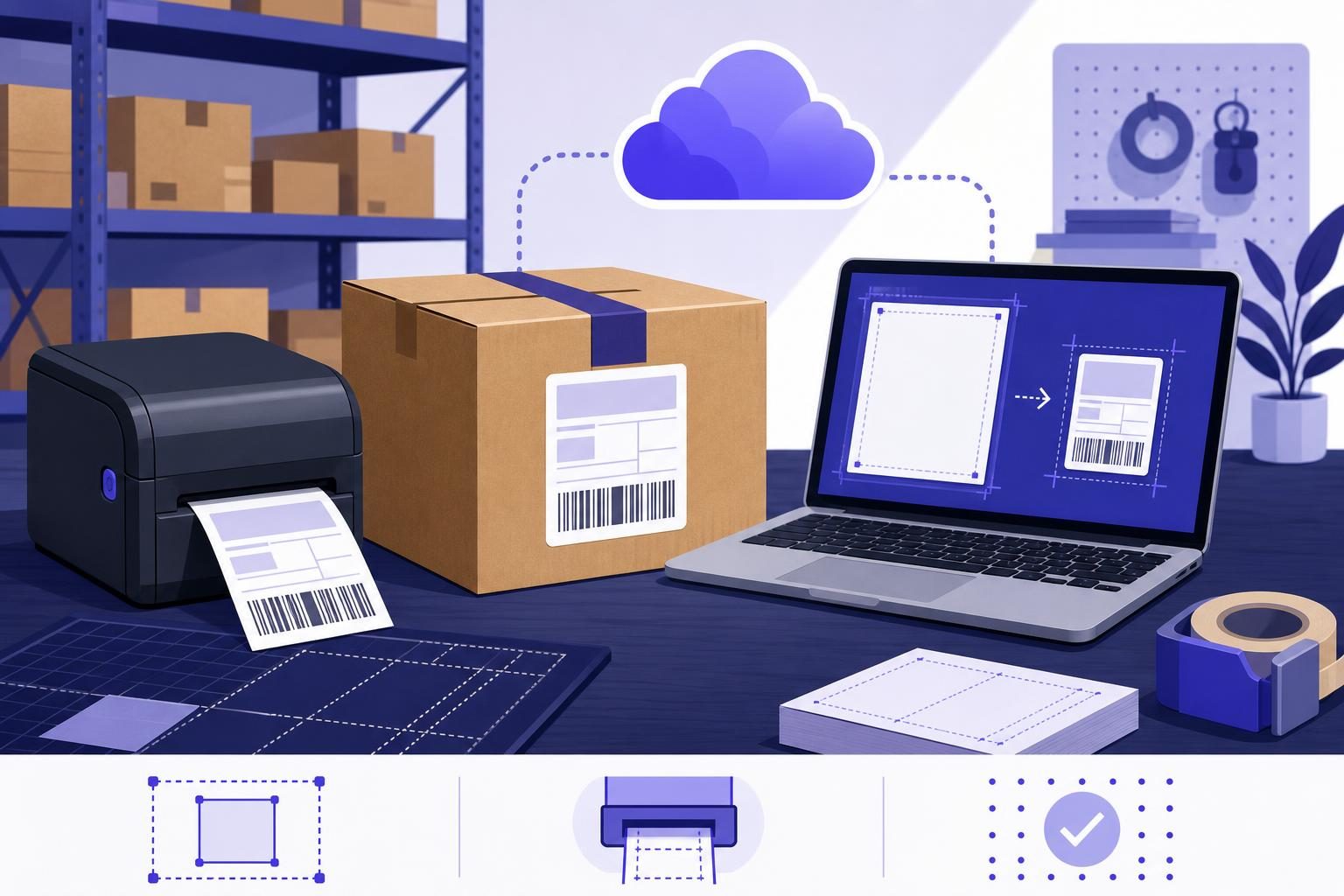
You can print 4x6 PDF shipping labels reliably when three things agree: the PDF page dimensions, the printer’s configured media size, and the scaling applied during printing. A label that looks correct on screen can still print too small or lose its barcode when one of those settings is wrong. Start by fixing the document and printer configuration, then automate delivery so every shipment follows the same tested path.
Why a 4x6 shipping label prints at the wrong size
A shipping label passes through several layers before it reaches paper:
- Your shipping system generates or downloads the PDF.
- A PDF viewer or print service renders the page.
- The operating system and printer driver apply media settings.
- The printer places the result on the loaded label stock.
Each layer can introduce a mismatch. For example, a carrier label might occupy a small area of a Letter-sized PDF. Selecting 4x6 paper does not extract that label; a fit-to-page setting may shrink the entire Letter page onto the smaller stock.
The reverse problem also happens. A true 4x6 PDF sent through a queue configured for Letter paper may be positioned incorrectly or processed with unwanted margins.
The reliable starting point is a genuine 4x6 PDF page printed on matching media at actual size. Automation cannot repair incorrect source geometry by itself.
Check the PDF page size before changing printer settings
PDF page dimensions are usually expressed in points, with 72 points per inch. A standard portrait 4x6 page therefore measures:
| Label orientation | Width | Height | PDF dimensions |
|---|---|---|---|
| Portrait | 4 inches | 6 inches | 288 × 432 points |
| Landscape | 6 inches | 4 inches | 432 × 288 points |
| Metric equivalent | 101.6 mm | 152.4 mm | Same physical dimensions |
Some printer drivers offer nearby metric media presets rather than an exact 4x6 option. Do not assume a preset with a similar name has identical dimensions. Check the driver’s actual width and height against the stock you loaded.
A label on a Letter page is not a 4x6 PDF
Open the PDF’s document properties or page-size display. If the page is 8.5 × 11 inches, it is a Letter document even when the visible label occupies only one corner.
The best fix is usually to request a 4x6 or thermal-label output format from the system that generates the shipping label. If that is unavailable, create a controlled cropping workflow that preserves the entire carrier label, including its barcode quiet zones and required markings.
Do not stretch a rectangular label to fill a differently proportioned page. Stretching changes barcode geometry and can make scanning less reliable.
Inspect PDF dimensions with Python
For a repeatable check during development, install a PDF inspection library:
python -m pip install pypdf
Then inspect both the media box and crop box:
from pypdf import PdfReader

reader = PdfReader("shipping-label.pdf")

for number, page in enumerate(reader.pages, start=1):
    media = page.mediabox
    crop = page.cropbox
    print(
        f"Page {number}: "
        f"media={float(media.width) / 72:.3f} x "
        f"{float(media.height) / 72:.3f} inches; "
        f"crop={float(crop.width) / 72:.3f} x "
        f"{float(crop.height) / 72:.3f} inches; "
        f"rotation={page.rotation}"
    )
This inspects the file without changing it. Different media and crop boxes, or a rotation value of 90 or 270 degrees, are useful clues when the visible page and printed orientation disagree.
Establish one known-good local print
Before adding an API, print one label manually from the computer connected to the printer. This separates document and driver problems from application-delivery problems.
Use a test or voided shipping label with the same layout as your production labels.
Match the driver to the loaded stock
In the printer’s preferences, verify:
- The selected media is 4x6 inches or the correct equivalent.
- Portrait or landscape orientation matches the intended output.
- The media sensing mode matches your stock, such as gap or black mark.
- The printer has been calibrated according to its manufacturer’s instructions.
- The label roll is loaded correctly and the guides hold it without pinching.
Unexpected blank labels or inconsistent starting positions may indicate media sensing or calibration trouble rather than PDF scaling.
Start with actual size, not fit to page
For a correctly sized 4x6 PDF, test actual-size or 100% printing first. Disable settings that print multiple pages per sheet.
Fit-to-page can help when a document genuinely needs proportional resizing, but it should not be your default repair for a label that already matches the stock. It can reduce the label to accommodate margins imposed by the driver.
Also check for competing orientation settings. A PDF renderer, driver, and application can each influence rotation. Change one setting at a time, then compare the result.
Scan the printed barcode
Visual inspection is necessary but insufficient. Use the scanner or scanning workflow that warehouse staff actually use, and verify that the decoded value matches the shipment.
If the label is physically correct but scanning is inconsistent, investigate source image quality, print darkness, speed, dirty printheads, and damaged stock. Increasing a software DPI setting cannot recreate detail missing from a low-resolution source image.
Automate 4x6 PDF shipping labels with PrintScaler
Once a local label prints correctly, PrintScaler can deliver the PDF from your application to the physical printer with one HTTPS request. The local printer still needs correct media and driver settings; the API replaces manual document delivery, not hardware setup.
Step 1: Connect the printer computer
Download the PrintScaler agent for Windows, macOS, Linux, or Raspberry Pi. Install it on the computer that can access your label printer, then enter the dashboard’s pairing code in the agent.
The agent runs in the background, starts after reboots, and connects outbound through a WebSocket. You do not need to expose a printer port or configure inbound port forwarding for this connection method.
In the dashboard, locate the reported printer and send a test page. A test page confirms basic connectivity, but it does not validate your shipping label’s page size. Follow it with your actual test-label PDF.
Step 2: Choose a printer and confirm its capabilities
Record the printer ID used by your integration. Read the printer’s reported capabilities through the API, including available paper sizes and DPI values.
Do not assume every printer uses the same paper-size identifier. A media name accepted by one driver may not exist on another, even when both printers hold 4x6 stock.
PrintScaler supports PDF options including paper size, copies, DPI, fit to page, page ranges, rotation, and n-up. Consult the print options reference for the request structure and select values that match the target printer’s capabilities.
For an initial test, use the known-good queue defaults. For production, explicitly control the settings your workflow depends on rather than relying on someone’s last manual print configuration. Start with one copy, the matching paper size, and no unnecessary rotation or scaling overrides.
Step 3: Submit the PDF to the print API
PrintScaler accepts a PDF by URL with pdf_uri or as Base64 content with pdf_base64. Base64 is useful when the file already exists in your backend and you do not want to expose a download URL.
The following Python example sends a local PDF using only the standard library:
import base64
import json
import os
from pathlib import Path
from urllib.request import Request, urlopen

pdf_path = Path("shipping-label.pdf")
printer_id = int(os.environ["PRINTSCALER_PRINTER_ID"])
api_key = os.environ["PRINTSCALER_API_KEY"]

# Persist this value for the logical label-print operation.
# Reuse it if the same HTTP submission must be retried.
operation_key = os.environ["LABEL_PRINT_OPERATION_KEY"]

payload = {
    "printerId": printer_id,
    "contentType": "pdf_base64",
    "content": base64.b64encode(pdf_path.read_bytes()).decode("ascii"),
    "title": "Shipping label: shipment-10482",
}

request = Request(
    "https://api.printscaler.com/v1/printjobs",
    data=json.dumps(payload).encode("utf-8"),
    headers={
        "Authorization": f"Bearer {api_key}",
        "Content-Type": "application/json",
        "X-Idempotency-Key": operation_key,
    },
    method="POST",
)

with urlopen(request, timeout=30) as response:
    print(response.read().decode("utf-8"))
Set the environment variables before running it. Use your actual printer ID, API key, and a persisted operation key such as shipment-10482-label-v1-initial.
This example intentionally uses the printer queue’s tested defaults rather than guessing option identifiers. Add explicit PDF options using the documented schema once you have confirmed the printer’s capabilities.
Keep the API key on your server. A browser-based packing station should ask your backend to print, not receive the credential itself. Also keep label contents and Base64 payloads out of routine logs because shipping labels contain personal information.
Step 4: Verify the physical output
Print one label through the API and compare it with your known-good manual print:
- Check that the full label is visible and aligned.
- Measure a consistent layout feature to detect unexpected scaling.
- Scan the barcode and verify its decoded value.
- Confirm that one request produces the intended number of labels.
- Repeat after an agent restart to check that the workflow still uses the intended settings.
If manual printing works but API printing differs, investigate the rendering and option differences before changing the source PDF. Keep the same file throughout the comparison so you are testing one variable at a time.
Prevent duplicate and stale shipping labels
A packing workflow needs more than successful submission. Network timeouts, offline workstations, and operator reprints can all create ambiguous outcomes.
Separate request retries from intentional reprints
Suppose your application submits a label but times out before receiving the response. Sending another request with a new operation key can create an additional print job.
Reuse the original X-Idempotency-Key when retrying the same submission. Create a new key only when the operator deliberately requests another physical copy or a new label version. The idempotency documentation explains the API behavior.
Store the shipment identifier, label version, operation key, selected printer, and returned job information together. This makes support questions answerable without guessing which parcel a job belonged to.
Account for offline printers and delayed output
PrintScaler queues jobs while a computer is offline and sends them when it reconnects, subject to configurable expiration. That is useful for temporary outages, but a delayed label may no longer belong at the active packing station.
Choose an expiration policy that matches your operation. A label requested for a parcel being packed now may need a different lifetime from an overnight batch.
Track job states and history, and use signed webhooks if your application needs event-driven updates. Do not treat an HTTP success response as proof that the correct label was physically attached to the correct parcel. Retain a scan-based confirmation step where shipment accuracy matters.
Troubleshoot common 4x6 PDF label problems
| Symptom | Likely area to inspect | First action |
|---|---|---|
| Label prints tiny in the middle | Source PDF is Letter or A4 | Check page dimensions; request genuine 4x6 output |
| One edge or barcode is cut off | Media mismatch, positioning, or printable area | Compare stock, driver size, and PDF dimensions |
| Label is sideways | PDF rotation and driver orientation | Inspect page rotation; change one orientation setting |
| Printer feeds extra blank labels | Media sensing, calibration, or extra PDF pages | Check page count and calibrate for the stock |
| Barcode looks soft or jagged | Low-resolution source or print settings | Use the original PDF and inspect embedded images |
| Duplicate labels appear | Retry logic, copies, or repeated operator action | Check operation keys, copy settings, and job history |
| Old labels print after an outage | Offline queue and expiration policy | Review queued jobs and adjust expiration |
If these checks do not resolve the issue, isolate the path further: print the same PDF locally, through the API, and on another known-good queue if available. Record the exact file, selected printer, options, and observed result for each test.
When PDF is the right choice—and when ZPL helps
PDF is practical when your shipping provider already generates a correct 4x6 document or when your printer fleet uses different hardware and drivers. Preserve the original file instead of converting it to a screenshot and wrapping that screenshot in another PDF.
If your shipping system supplies ZPL and your printer supports it, native printer commands are another option. That is a different pipeline, not a setting that repairs a malformed PDF. See the guide to printing ZPL from cloud applications for that approach.
Commerce automation also needs a sensible business trigger. Print when the shipment and label are ready, not merely when an order exists. The WooCommerce automatic order printing guide discusses that broader event-driven workflow.
Test the workflow before scaling it
PrintScaler pricing is per print request, not per page. The Free plan includes 100 prints per month and one connected computer, which can support an initial workflow test; all printers on that computer are included. Check the current plans and allowances before rolling out multiple packing stations.
Start with one printer, one genuine 4x6 PDF, and one successful barcode scan. Then add explicit settings, retry protection, and job tracking before expanding the integration.
To put that workflow into practice, create a free PrintScaler account, connect your label printer, and send your first correctly sized shipping label.
Frequently asked questions
Why does my 4x6 shipping label print too small?
The label may be placed on a Letter- or A4-sized PDF page, causing the entire page to shrink onto 4x6 stock. Check the PDF’s actual dimensions, request a genuine 4x6 export, and test actual-size printing with matching driver media settings.
Should I use actual size or fit to page for shipping labels?
Start with actual size or 100% when the PDF already matches the label stock. Fit-to-page may shrink the label to accommodate driver margins, so use it only when proportional resizing is intentional and verify the printed barcode.
Can PrintScaler print PDF shipping labels to a thermal printer?
Yes. Connect the printer through the PrintScaler agent and submit the PDF using the pdf_uri or pdf_base64 content type. The printer must still have an appropriate driver and correctly configured label media.
Will increasing DPI fix blurry shipping label barcodes?
Not if the source contains a low-resolution barcode image. Use the original carrier-generated PDF, avoid screenshot conversions, and check the printer’s supported resolution, darkness, speed, and printhead condition.
How do I prevent duplicate labels when an API request times out?
Persist an idempotency key for each logical print operation and reuse it when retrying that submission. Use a new key for an intentional reprint, and check job history before asking an operator to print again.