Multi-Location Printing: Route Jobs to the Right Store
Route receipts, labels, and documents to the correct branch from one application. Learn how to map printers, handle disconnected locations, and build a reliable multi-location printing workflow.
By the PrintScaler team · · 9 min read
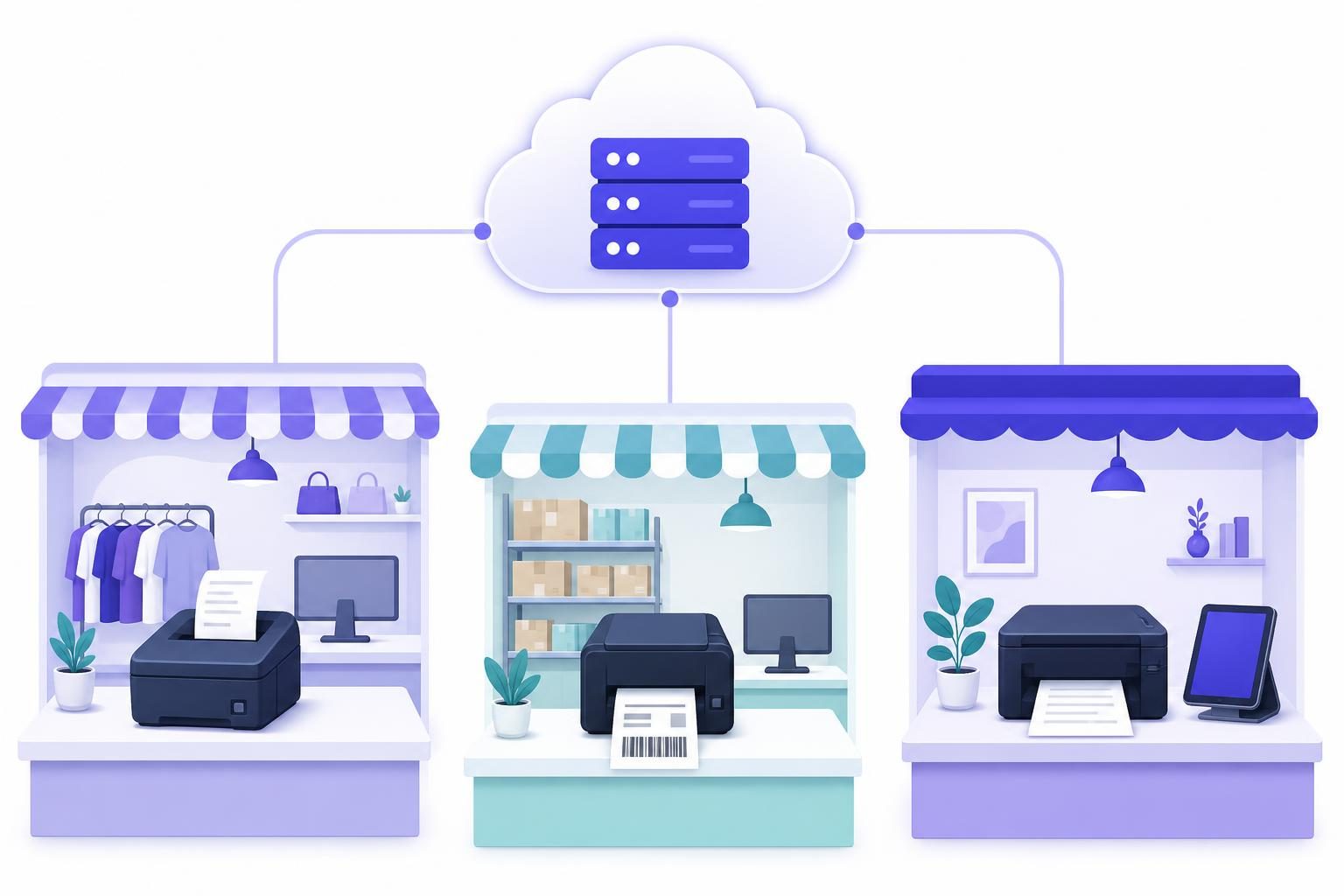
Multi-location printing works by mapping each business location and document type to a specific printer, then submitting jobs through a central service. With PrintScaler, your backend sends one HTTPS request while an agent at the selected location connects the cloud service to the physical printer. The important design work is not just making paper appear: it is ensuring that the right document reaches the right branch, with clear rules for outages and retries.
What a multi-location printing system needs to do
Imagine a retailer with several branches and a central order management application. An order assigned to the downtown store needs a packing slip there, while a return accepted at the airport branch needs a receipt at that counter.
Hard-coding a single printer into the application breaks as soon as a second branch opens. Asking employees to select a printer every time also introduces avoidable routing errors.
A reliable system separates three decisions:
- Business destination: Which location owns this order, appointment, shipment, or transaction?
- Printing role: Does the event need a receipt printer, label printer, or office printer?
- Physical destination: Which registered printer currently fulfills that role at that location?
The backend should resolve these decisions before submitting the print request. The browser, tablet, or checkout terminal should not need a list of every printer in the company.
This approach fits retail chains, restaurant groups, distributed warehouses, clinics, and software vendors serving customers with multiple branches.
Separate location routing from physical printer IDs
Use stable business identifiers for locations and roles. Keep physical printer IDs in a server-side configuration table rather than spreading them through order-processing code.
For example:
| Location | Printing role | Document format | Configured printer ID |
|---|---|---|---|
| Downtown store | Packing slip | 123 | |
| Downtown store | Customer receipt | ESC/POS | 124 |
| Airport store | Packing slip | 456 | |
| Airport store | Shipping label | ZPL | 457 |
These IDs are illustrative. Replace them with IDs from your own PrintScaler account.
A useful routing record contains a location ID, role, printer ID, active flag, and configuration revision. Your application can also store the expected paper size or printer language as validation metadata.
Keep the location ID stable when staff rename a store. Similarly, replacing a broken printer should require changing a routing record, not redeploying every feature that prints.
Resolve the location from trusted business data
Do not accept an arbitrary printerId from a public checkout page and forward it to the printing API.
Instead, load the relevant order or transaction, verify that the caller may act on it, and derive its assigned location. Then resolve the printer using that location and the requested document role.
For example, a packing-slip action should follow this path:
Authorized order → fulfillment location → packing-slip role → configured printer
For SaaS applications, include tenant ownership in that lookup. A valid store identifier is not enough if it belongs to another customer.
Choose the connection method for each location
PrintScaler supports different connection approaches. You do not have to use identical hardware at every branch, but documenting each location’s connection method makes support easier.
Use the agent for general-purpose branch printing
The PrintScaler agent runs on Windows, macOS, Linux, and Raspberry Pi. Install it on a computer that can access the branch’s printers, then link the computer using the pairing code in the dashboard.
The agent runs in the background, starts automatically after reboots, updates itself, and reports printers and their status. Its outbound WebSocket connection does not require opening inbound ports or configuring port forwarding. Network policies must still permit the outbound connection.
This is a practical default for mixed environments: office printers for PDFs, label printers for shipping, and receipt printers for counters.
Use supported Epson printers without a computer
Supported Epson receipt printers with Server Direct Print can connect to PrintScaler directly. This is useful when a branch uses tablet-based POS terminals and does not need an always-on computer for printing.
Check the exact model and its capabilities before standardizing a rollout. The separate guide to printing receipts from an iPad to Epson printers explains this hardware-specific approach.
Treat public-IP printer access as a deliberate exception
Network receipt printers can also be reached through a public IP address or dynamic DNS name with port forwarding. That introduces inbound exposure and router configuration that an agent-based setup avoids.
Do not make an exposed printer port your default branch architecture. If you use this approach, involve whoever manages network security and document the access restrictions and maintenance responsibilities.
Set up multi-location printing with PrintScaler
Start with one location and one document role. Prove that routing and document formatting work before adding every branch.
1. Connect and test the first branch
Download the PrintScaler agent onto the branch computer that will provide printer access. Install it, enter the dashboard pairing code, and confirm that the expected printers appear.
Use the dashboard’s test page button before integrating your application. This separates connectivity problems from problems in your document-generation code.
Record the selected printer’s ID in your application’s routing configuration. Add an operator-friendly description such as “Downtown packing station,” but keep the numeric ID as the actual API destination.
2. Match the document format to the printing role
Choose the format according to the output device and document:
- PDF: Packing slips, invoices, forms, and other page-oriented documents.
- ZPL or EPL RAW: Labels for printers that support the corresponding language.
- ESC/POS RAW: Receipts for compatible receipt printers, including supported cut, cash drawer, and QR code commands.
Do not assume every label printer accepts ZPL or every receipt printer accepts the same commands. Validate the exact hardware before rolling out a template.
For PDFs, PrintScaler supports options including paper size, tray, duplex, copies, DPI, color, and fit to page. Printer capabilities are readable through the API. Use them to validate a branch’s configuration rather than assuming all branches have identical paper trays or supported sizes.
3. Submit a test job from your backend
A PDF request uses the same endpoint regardless of which branch owns the destination printer:
curl --request POST 'https://api.printscaler.com/v1/printjobs' \
  --header "Authorization: Bearer $PRINTSCALER_API_KEY" \
  --header 'Content-Type: application/json' \
  --header 'X-Idempotency-Key: packing-slip-order-8421-v1-downtown' \
  --data '{
    "printerId": 123,
    "contentType": "pdf_uri",
    "content": "https://files.example.com/orders/8421/packing-slip.pdf",
    "title": "Order 8421 packing slip"
  }'
Replace the example printer ID and document URL. For pdf_uri, the document must be retrievable by the printing service; a URL requiring an employee’s browser session will not work. For sensitive documents, consider a suitably scoped, sufficiently long-lived signed URL or submit the PDF using pdf_base64.
Keep the API key on the server. See the print job API reference for request details.
4. Add server-side location routing
This Node.js example uses built-in fetch and a small in-memory routing map. In production, use a database or managed configuration store.
import { createHash } from 'node:crypto';

const routes = new Map([
  ['downtown:packing-slip', 123],
  ['airport:packing-slip', 456],
]);

export async function printPackingSlip(order, pdfBase64) {
  // The caller must load and authorize this order server-side.
  const routeKey = `${order.fulfillmentLocationId}:packing-slip`;
  const printerId = routes.get(routeKey);
  if (!printerId) throw new Error('No packing-slip printer configured');

  const apiKey = process.env.PRINTSCALER_API_KEY;
  if (!apiKey) throw new Error('Missing PrintScaler API key');

  // Persist the revision with the document; reuse it on retries.
  const identity = JSON.stringify([
    'packing-slip',
    order.id,
    order.documentRevision,
    order.fulfillmentLocationId,
  ]);
  const idempotencyKey = createHash('sha256')
    .update(identity)
    .digest('hex');

  const response = await fetch(
    'https://api.printscaler.com/v1/printjobs',
    {
      method: 'POST',
      headers: {
        Authorization: `Bearer ${apiKey}`,
        'Content-Type': 'application/json',
        'X-Idempotency-Key': idempotencyKey,
      },
      body: JSON.stringify({
        printerId,
        contentType: 'pdf_base64',
        content: pdfBase64,
        title: `Packing slip ${order.id}`,
      }),
      signal: AbortSignal.timeout(15000),
    }
  );

  const result = await response.text();
  if (!response.ok) {
    throw new Error(`PrintScaler HTTP ${response.status}`);
  }
  return result;
}
The PDF argument must be a base64-encoded PDF, without a data-URI prefix. Validate required order fields and document data before calling this function.
This example deliberately leaves response interpretation and durable storage to your application. Store the returned job identifier according to the documented response schema, along with the order, destination, document revision, and submission outcome. A request timeout does not prove that the service rejected the job; retry the same logical submission with the same idempotency key.
5. Roll out one role at a time
After packing slips work, add receipts or labels as separate roles. Give each role its own template, compatibility checks, and acceptance test.
Do not route an unsupported document to whichever printer happens to be online. A receipt printer is not a fallback for a letter-size invoice merely because both devices are at the same store.
Define what happens when a branch goes offline
PrintScaler queues jobs while a computer is offline and prints them when it reconnects, unless they reach their configurable expiration time. That behavior is useful, but the appropriate expiration policy depends on the document.
| Document | Operational concern | Suggested application policy |
|---|---|---|
| Packing slip | Fulfillment may be delayed | Allow a recovery window and show pending status |
| Kitchen ticket | Old instructions can cause confusion | Use a short, business-approved expiration window and escalation process |
| Customer receipt | Staff may need an immediate alternative | Show failure or delay clearly; offer your approved fallback |
| Scheduled batch document | Later printing may still be useful | Permit a longer window if the workflow allows it |
These are design recommendations, not fixed PrintScaler defaults.
Distinguish a disconnected computer from an individual printer problem. A branch computer can remain connected while a printer is unavailable or out of paper. Neither condition should silently redirect sensitive or location-specific documents to another store.
If a backup printer is necessary, configure it explicitly for the same role and location. Require an operator decision when the original job’s outcome is uncertain; automatic failover after an ambiguous result can produce an unwanted second physical copy.
Track print jobs separately from business transactions
An order being paid and its receipt being printed are different events. Avoid holding a checkout database transaction open while waiting for a physical printer.
A more resilient application records a print task after the business event commits, then submits that task through a worker. Store enough context to answer:
- Which business event required this document?
- Which location and printer were selected?
- Which document revision was submitted?
- Was submission accepted, rejected, or interrupted?
- What is the latest reported print job state?
PrintScaler exposes states including new, sent_to_client, queued, in_progress, done, error, cancelled, and expired, with job history. Distinguish API acceptance from the later job lifecycle, and do not treat a successful HTTP response as proof that staff have the paper in hand.
Use PrintScaler webhooks to receive job-state changes, computer connection events, and printer updates. Verify HMAC-SHA256 signatures, handle repeated deliveries safely, and follow the documented event payloads rather than guessing field names.
For transport retries, retain the same idempotency key. For an authorized additional copy, create a distinct reprint event and audit it. The guide to preventing duplicate print jobs covers that distinction in more detail.
Size the rollout by computers and print requests
Count connected computers separately from printers. One branch computer may provide access to multiple printers, while a larger branch may need several computers because its printers are attached to separate workstations.
PrintScaler pricing is per print request, not per page. Current included allowances are:
| Plan | Monthly price | Included prints/month | Computers |
|---|---|---|---|
| Free | Free | 100 | 1 |
| Starter | $9 | 5,000 | 3 |
| Business | $29 | 30,000 | 10 |
| Scale | $89 | 900,000 | Unlimited |
Use the current pricing page to check overage rates and plan details before purchase. Do not assume that a ten-store business needs exactly ten computers; inventory the actual connection topology first.
Also plan for peak traffic. The API rate limit is 10 requests per second with a burst of 30. A central worker should smooth submission bursts and use backoff for rate-limited requests rather than letting every branch retry simultaneously.
Test routing before adding more locations
Use a short acceptance checklist for each new branch:
- Confirm the location and role resolve to the intended printer ID.
- Print a clearly identifiable test document without customer-sensitive data.
- Verify layout, paper size, barcode readability, and any receipt cut behavior.
- Disconnect the branch computer and confirm the chosen queue and expiration policy.
- Restore connectivity and check job history.
- Repeat a submission with the same idempotency key and verify retry handling.
- Test the staff escalation process when a job cannot print.
The result should be a repeatable onboarding procedure, not a collection of one-off fixes.
Build one printing workflow, then reuse it across branches
Reliable multi-location printing starts with trusted location data, explicit printer roles, and clear outage policies. A central API makes delivery consistent, while your application remains responsible for authorization, document generation, and business routing.
Create a free PrintScaler account, connect one branch, and test one document role end to end. Once that path is reliable, expand the same routing model to the rest of your locations.
Frequently asked questions
How do I print to the correct store from a central web application?
Resolve the store from an authorized business record, then map that store and document role to a registered printer ID. Your backend submits the document to PrintScaler using that ID, without exposing the API key to the browser.
Does every location need a computer for PrintScaler?
Agent-based printing requires a Windows, macOS, Linux, or Raspberry Pi computer with access to the printers. Supported Epson printers with Server Direct Print can connect directly without a computer, which can suit tablet-based POS locations.
What happens to print jobs when a store's computer is offline?
Jobs queue while the computer is offline and print when it reconnects, unless they reach their configurable expiration time. Choose an expiration policy appropriate to the document, especially for time-sensitive kitchen tickets or customer-facing workflows.
Can one branch computer connect multiple printers?
Yes. The agent reports the printers available through that computer, and your application selects a destination using its printer ID. Keep separate routing roles for devices such as receipt printers, label printers, and office printers.
Should failed jobs automatically print at another location?
Usually not: that can send sensitive documents to the wrong branch or create operational confusion. Configure any backup destination explicitly, and require review when the original job's outcome is uncertain.
How is multi-location printing usage billed?
PrintScaler charges per print request rather than per page. Plans also have computer allowances, so estimate both monthly request volume and the number of computers needed to connect your locations.