Google Sheets Automatic Printing: Send PDFs by API
Turn Google Sheets into a print queue for invoices, packing slips, and other PDFs. Use Apps Script and PrintScaler to send Drive documents to a local printer on a schedule.
By the PrintScaler team · · 9 min read
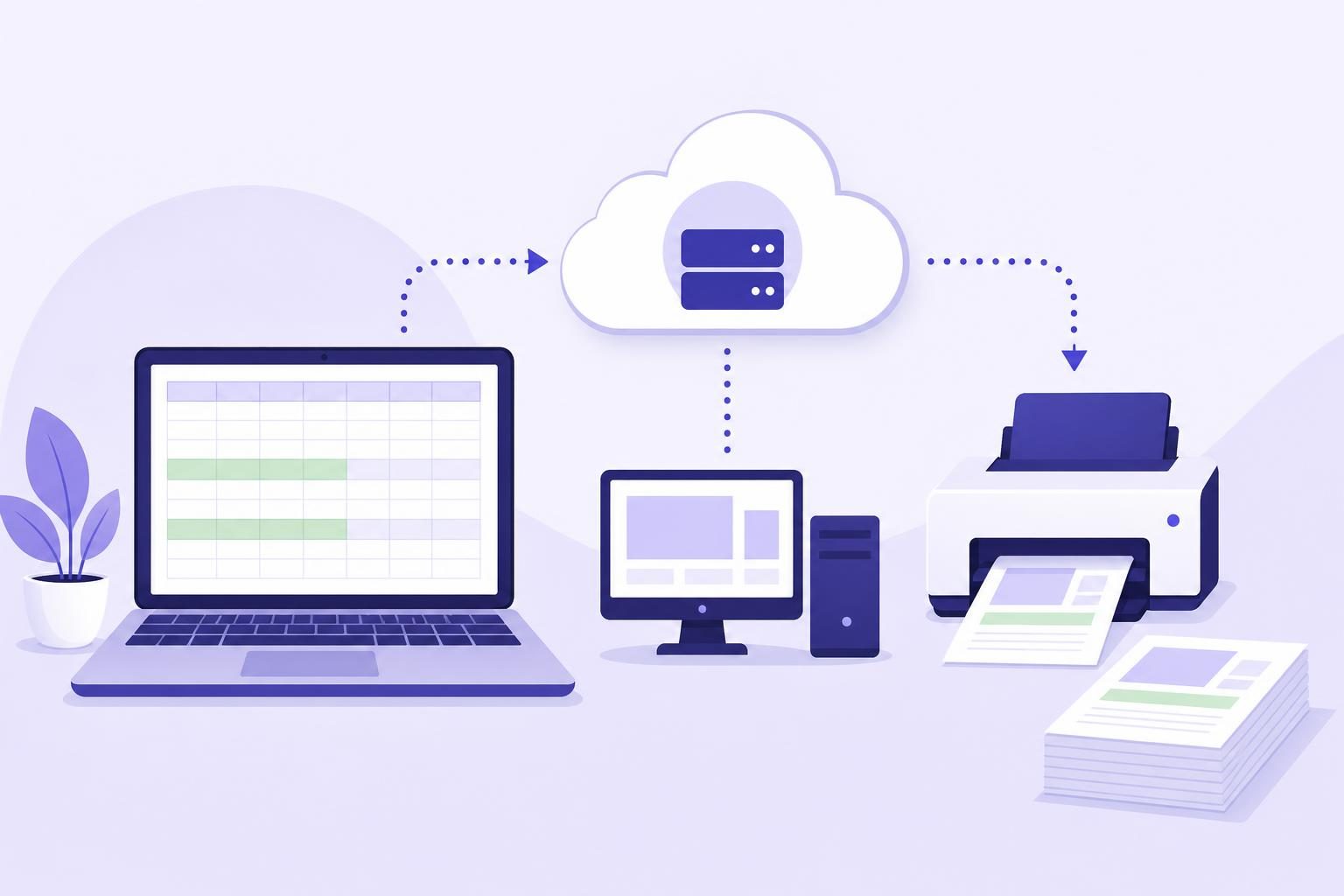
Google Sheets automatic printing requires more than a spreadsheet formula: you need a process that reads pending rows, retrieves the documents, and delivers them to a physical printer. Google Apps Script can handle the spreadsheet and Google Drive steps, while PrintScaler connects the cloud script to the printer. This guide builds a scheduled PDF print queue without browser print dialogs or a publicly exposed printer.
How automatic printing from Google Sheets works
The practical approach is to treat your spreadsheet as a list of printing instructions, not as the print transport itself.
Each row identifies a PDF in Google Drive, the destination printer, and whether the request has been submitted. An Apps Script function periodically checks for pending rows and sends their PDFs to PrintScaler over HTTPS.
The complete path is:
Google Sheets → Apps Script → PrintScaler API → PrintScaler agent → physical printer
The agent runs on a Windows, macOS, Linux, or Raspberry Pi computer that can access the printer. Apps Script does not need a connection to that computer, and the computer does not need an inbound firewall rule.
This works well for workflows such as:
- Printing invoices after an administrator approves a spreadsheet row.
- Sending packing slips from a shared fulfillment worksheet.
- Printing work orders that another system has already generated as PDFs.
- Processing a modest queue of documents without building a separate application.
This tutorial prints existing PDF files referenced by the sheet. It does not export the spreadsheet grid, generate invoices, or create a native Google Sheets printer integration.
Choose the right approach before building
There are three different problems people describe as “printing from Sheets.” They need different solutions.
| What you need | Appropriate approach | Main limitation |
|---|---|---|
| Occasionally print the visible worksheet | Use the spreadsheet’s normal print workflow | Someone must complete the print dialog |
| Automatically print PDFs listed in rows | Apps Script plus a cloud printing API | Requires a script, printer connection, and queue management |
| Print immediately from a custom web interface | Send a backend print request when the user acts | Requires an application workflow rather than a scheduled sheet |
If you mainly need the third option, see the separate guide to silent printing from a browser.
A scheduled spreadsheet queue is useful when a short delay is acceptable. It is less suitable for a checkout receipt that must emerge immediately after payment. Apps Script execution limits and trigger scheduling also make it a poor substitute for a dedicated high-volume queue worker.
Step 1: Connect your printer to PrintScaler
Start with the physical printing path before writing the spreadsheet automation.
- Install the PrintScaler agent on a supported computer that can access your printer.
- Enter the pairing code in the PrintScaler dashboard to link the computer.
- Confirm that the intended printer appears in the dashboard.
- Use the test-page button to check that the printer actually produces output.
- Record the printer’s numeric ID and create an API key.
The agent runs in the background, starts after reboots, and communicates through an outbound WebSocket. You do not need to forward a router port for this agent-based setup.
For the first test, use a regular office printer and a one-page PDF. Troubleshooting a spreadsheet script and an unfamiliar label-printer configuration at the same time makes failures harder to isolate.
The computer must eventually be online for an agent-connected printer to receive work. PrintScaler can queue jobs while the computer is offline, but jobs expire after a configurable time. Choose an expiration policy that matches the document’s usefulness.
Step 2: Create a spreadsheet print queue
Create a worksheet named PrintQueue with these columns in this order:
| Column | Header | Example | Purpose |
|---|---|---|---|
| A | Job key | invoice-1042-original |
Stable identifier for one intended print request |
| B | Drive file ID | Your PDF’s Drive file ID | Identifies the source PDF |
| C | Printer ID | 123 |
Chooses the destination printer |
| D | Status | PENDING |
Controls whether the script processes the row |
| E | Submitted at | Leave blank | Records API acceptance time |
| F | Last error | Leave blank | Stores a short diagnostic message |
Use a file ID, not a complete sharing URL, in column B. For a typical Drive file URL, the ID is the portion between /d/ and the next slash.
Choose a PDF that the account running the script is authorized to read. You do not need to make it publicly accessible: the script reads the file through Drive and submits its bytes as base64.
Make job keys stable and unique
The job key represents the business action, not the row number. Row numbers change when someone sorts or inserts rows.
For example:
invoice-1042-originalidentifies the first intended invoice print.invoice-1042-reprint-1identifies a deliberate second print.- Retrying
invoice-1042-originalshould reuse that same key.
Do not reuse one key for different PDFs or destinations. Once a row is queued, treat its job key, file, and printer as immutable. A corrected document or intentional reprint should get a new row and a new key.
Protect the operational columns from accidental edits where appropriate. This is particularly important when multiple people use the sheet.
Step 3: Store the API key in Apps Script properties
Open Extensions → Apps Script from the spreadsheet. In the project’s settings, add two script properties:
PRINTSCALER_API_KEY: your PrintScaler API key.PRINT_QUEUE_SPREADSHEET_ID: the spreadsheet ID from its URL.
Do not store the API key in a worksheet cell or paste it into the script source.
Script properties are useful for keeping credentials out of the visible sheet, but they are not a security boundary against project editors. People who can modify the script can potentially access or misuse its credentials. Restrict spreadsheet and script editing to trusted operators.
The code below uses explicit spreadsheet access by ID so that a scheduled execution does not depend on an active browser session.
Step 4: Add the Apps Script print worker
Paste this function into the script editor:
function processPrintQueue() {
  const lock = LockService.getScriptLock();
  if (!lock.tryLock(1000)) return;

  try {
    const props = PropertiesService.getScriptProperties();
    const apiKey = props.getProperty('PRINTSCALER_API_KEY');
    const spreadsheetId = props.getProperty('PRINT_QUEUE_SPREADSHEET_ID');
    if (!apiKey || !spreadsheetId) {
      throw new Error('Missing required script properties.');
    }

    const sheet = SpreadsheetApp.openById(spreadsheetId)
      .getSheetByName('PrintQueue');
    if (!sheet) throw new Error('PrintQueue worksheet not found.');

    const rows = sheet.getDataRange().getValues();
    let attempted = 0;

    for (let i = 1; i < rows.length && attempted < 5; i++) {
      const [jobKey, fileId, printerValue, status] = rows[i];
      if (status !== 'PENDING') continue;
      attempted++;

      const row = i + 1;
      const printerId = Number(printerValue);
      if (!jobKey || !fileId ||
          !Number.isSafeInteger(printerId) || printerId <= 0) {
        sheet.getRange(row, 4, 1, 3).setValues([
          ['FAILED', '', 'Check job key, Drive file ID, and printer ID.']
        ]);
        continue;
      }

      let pdf;
      try {
        pdf = DriveApp.getFileById(String(fileId)).getBlob();
        if (pdf.getContentType() !== 'application/pdf') {
          throw new Error('Source file must be a PDF.');
        }
      } catch (error) {
        sheet.getRange(row, 4, 1, 3).setValues([
          ['FAILED', '', 'Cannot read source PDF; check file and access.']
        ]);
        continue;
      }

      try {
        const response = UrlFetchApp.fetch(
          'https://api.printscaler.com/v1/printjobs',
          {
            method: 'post',
            contentType: 'application/json',
            headers: {
              Authorization: 'Bearer ' + apiKey,
              'X-Idempotency-Key': 'sheets-' + String(jobKey)
            },
            payload: JSON.stringify({
              printerId: printerId,
              contentType: 'pdf_base64',
              content: Utilities.base64Encode(pdf.getBytes()),
              title: 'Sheets job ' + String(jobKey)
            }),
            muteHttpExceptions: true
          }
        );

        const code = response.getResponseCode();
        if (code >= 200 && code < 300) {
          sheet.getRange(row, 4, 1, 3).setValues([
            ['API_ACCEPTED', new Date(), '']
          ]);
        } else {
          const retryable = code === 429 || code >= 500;
          sheet.getRange(row, 4, 1, 3).setValues([
            [retryable ? 'PENDING' : 'FAILED', '', 'HTTP ' + code]
          ]);
        }
      } catch (error) {
        sheet.getRange(row, 6).setValue(
          'Request outcome uncertain; retry with the same job key.'
        );
      }

      Utilities.sleep(200);
    }
  } finally {
    lock.releaseLock();
  }
}
The request uses PrintScaler’s documented pdf_base64 content type and Bearer authentication. See the print job API reference for the request model and additional printing options.
The worker attempts at most five pending rows per execution. That is a conservative starting point, not a recommended maximum or a service limit. It keeps initial tests small and reduces the risk of exhausting an Apps Script execution while processing a large sheet.
Why the script uses a lock
A manual execution and a scheduled execution could overlap. The script lock prevents two executions of this project from processing the queue simultaneously.
It does not stop a person from sorting or editing the sheet during execution. Keep the operational queue stable while the worker runs; use a separate reporting tab for sorting and analysis. For more demanding workflows, move queue state into a database rather than coordinating through editable row positions.
Step 5: Authorize, test, and schedule printing
Before enabling unattended processing:
- Add one test row with status
PENDING. - Run
processPrintQueuemanually from Apps Script. - Complete Google’s authorization flow for spreadsheet, Drive, and external-request access.
- Check whether the row changes to
API_ACCEPTED. - Inspect the job in the PrintScaler dashboard and confirm the printed page.
Then create a time-driven trigger for processPrintQueue. For an initial workflow, a five-minute interval is a reasonable choice when that delay fits the operation.
An installable trigger runs under the account that created it. That account must retain access to both the spreadsheet and the PDFs. Use an operationally maintained account and document who owns the trigger so printing does not unexpectedly stop after a staffing change.
Scheduled triggers are not exact delivery deadlines. Avoid promising that a document will print at a precise second, and review current Google Apps Script quotas before increasing volume or frequency.
Handle retries without printing duplicate documents
The most important failure case is not a clear rejection. It is an uncertain outcome: the API may accept the job, but the script times out before recording success in the sheet.
The worker sends the same X-Idempotency-Key whenever it retries the same row. This allows PrintScaler to recognize the repeated request instead of treating it as another intended print. Follow the documented idempotency behavior when designing retry policies.
The example separates three outcomes:
- Successful HTTP response: mark the row
API_ACCEPTEDand stop submitting it. - HTTP 429 or server error: leave it
PENDINGfor a later attempt. - Other non-success HTTP response: mark it
FAILEDfor operator review.
A network exception leaves the row pending with an uncertainty message. Keep the same key and unchanged payload when retrying.
For production, add an attempt counter, a next-attempt timestamp, and an alert after repeated failures. Otherwise, a persistent service problem could cause the same first five pending rows to occupy every run and delay later work. The broader guide to preventing duplicate print jobs explains retry design in more detail.
Track API acceptance separately from printing completion
API_ACCEPTED deliberately does not mean “paper printed.” It only records that the submission received a successful response.
PrintScaler tracks states including new, sent_to_client, queued, in_progress, done, error, cancelled, and expired, with job history. Use the dashboard to investigate a job that was accepted but has not produced the expected output.
For a more complete integration, persist the returned job identifier according to the API response schema and update a separate delivery-status column from subsequent job state information. PrintScaler also offers signed, retried webhooks, but receiving them securely requires additional infrastructure beyond this scheduled script.
Even a reported completion should not be treated as proof that someone collected the correct document. High-consequence workflows may need an operator acknowledgment or barcode scan.
Troubleshoot the most common failures
The row says FAILED
Check the file ID, PDF MIME type, printer ID, and trigger owner’s Drive permissions. For an HTTP error, inspect the relevant API documentation and account configuration before resubmitting. Avoid logging whole PDF payloads or credentials while debugging.
The row is accepted, but nothing prints
Check the PrintScaler job history, the connected computer, and the printer itself. An offline computer, paused printer, empty paper tray, or printer error needs a different fix from a failed API request.
PDFs print at the wrong size
This example submits the PDF without explicit layout options. Check the source page dimensions and printer defaults first. PrintScaler supports PDF options such as paper size, tray, duplex, copies, and fit to page; read the printer’s capabilities before adding explicit settings.
Large files or large queues fail
Base64 makes the request larger than the original binary file, and Apps Script has execution and request limits. Keep this approach focused on modest workloads. For larger documents, an appropriately secured URL-based PDF workflow may be more suitable; private Drive sharing links are not automatically direct-download PDF URLs.
Start with a small, observable workflow
Google Sheets can be a useful control surface for automatic printing when every row has a stable job key, an accessible PDF, and a clear destination. Keep submission status separate from delivery status, test uncertain retries, and make ownership of the scheduled script explicit.
PrintScaler’s Free plan includes 100 print requests per month and one computer, making it suitable for validating a small workflow. Pricing is per print request rather than per page; check the current plans before expanding.
Create a free PrintScaler account, connect one printer, and run a single test row before turning on the schedule.
Frequently asked questions
Can Google Sheets automatically print to a local printer?
Yes, with an automation layer. Apps Script can read pending spreadsheet rows and submit documents to a cloud printing API, while a locally installed PrintScaler agent delivers the jobs to the physical printer.
Does the spreadsheet have to stay open for scheduled printing?
No. A time-driven Apps Script trigger runs without an open spreadsheet browser tab. The trigger owner must retain the required permissions, and the computer connected to an agent-based printer must be available to receive queued work.
Do Google Drive PDFs need public sharing enabled?
Not for the base64 approach in this tutorial. Apps Script reads each PDF using the executing account’s Drive permissions and sends its bytes to PrintScaler over HTTPS.
Can this script print the Google Sheets worksheet itself?
Not as written: it prints existing PDF files referenced by worksheet rows. Printing the worksheet requires a separate PDF-generation or export step before submitting the resulting document to the printing API.
How do I prevent duplicate prints when Apps Script times out?
Assign a stable job key to each intended print and send it as the PrintScaler idempotency key on every retry. Keep the document and destination unchanged for that key, and use a new key only for a genuinely new print request.
Does API_ACCEPTED mean the document has finished printing?
No. It means the submission received a successful API response. Check PrintScaler’s job history and states to follow delivery and investigate errors, offline computers, or expired jobs.